Installing Jusonix on Android TV and Google TV
This applies to Android televisions (Sony, Philips, TCL, Hisense, Nokia…), to boxes such as Mi Box, Nvidia Shield and Chromecast with Google TV, and to Android set-top boxes. Android 5.0 or later is required.
Install Downloader from the Play Store
On the television open the Play Store and search for "Downloader" by AFTVnews. If your device does not have it, any app that can download a file will do — or copy the APK from a USB stick.
Allow installation from unknown sources
Settings → Apps → Security & restrictions → Unknown sources, then turn on the switch next to Downloader. On Google TV: Settings → System → Apps → Security.
Download the APK
In Downloader type the address below and press Go.
app.jusonix.comInstall and open
Press Install, then Open. Jusonix appears among the television’s apps with its own icon.
Load your M3U or Xtream playlist
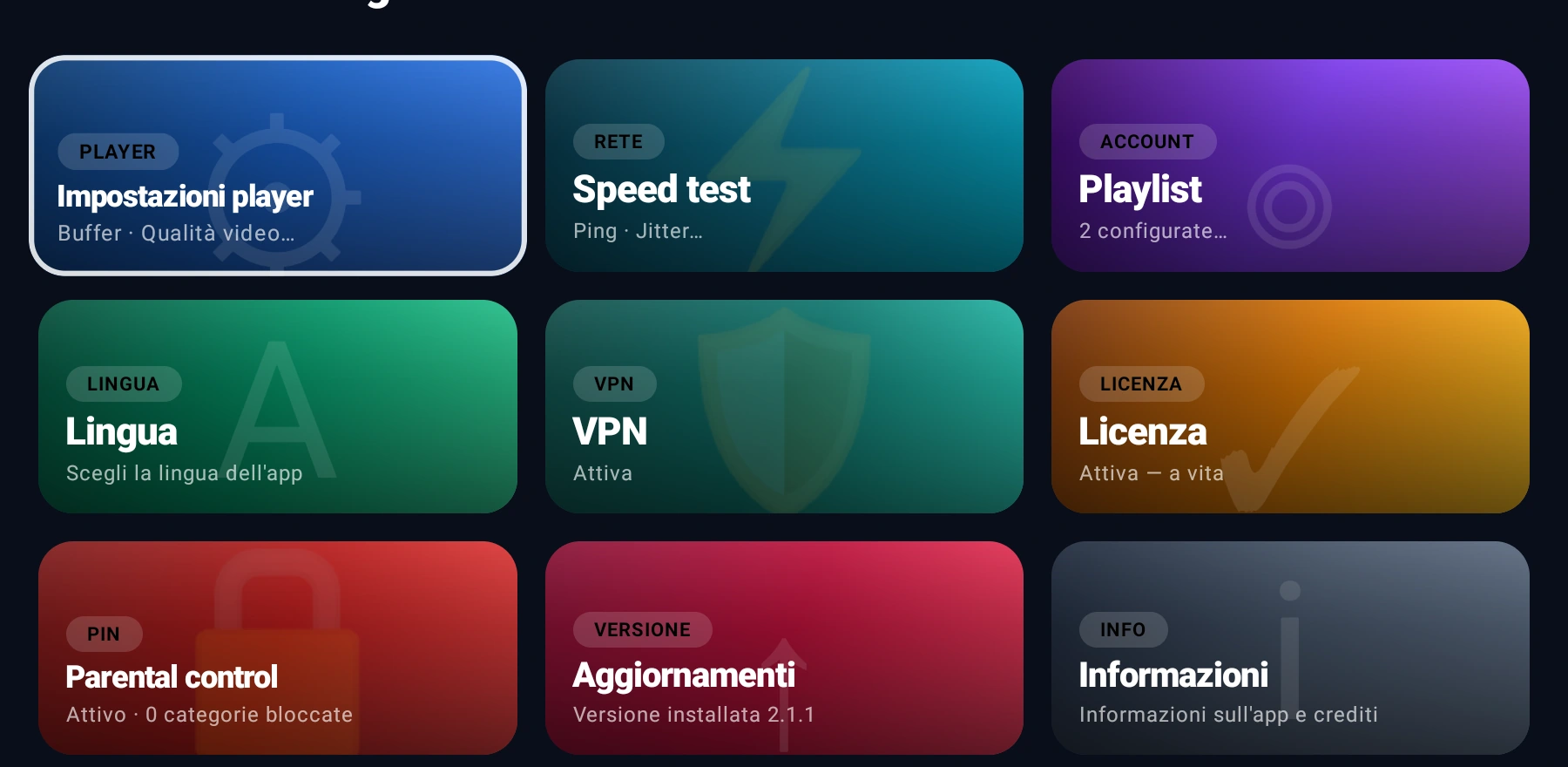
Settings → Playlist → Add. With the QR code you can paste the address from your phone instead of typing it with the remote.
Note: Jusonix is a player. The channels come from the M3U playlist or Xtream Codes account that you own.
Devices without a Play Store
On generic Android boxes with no store you can copy the APK onto a USB stick and install it with the device’s file manager. The address to download it from, on a computer, is the same: app.jusonix.com.
If something goes wrong
The app is not on the television home screen
On some Android TVs, sideloaded apps end up under "Your apps" or in a separate part of the menu. From there you can add it to the home row.
The remote does not move the focus
This happens with the Bluetooth remotes of certain boxes: restart the television after installing. Jusonix only uses arrows, OK and Back.
Playback stutters
Open Settings → Speed test inside the app: it measures ping and bandwidth against your provider and tells you whether the line holds Full HD or 4K.